Common Devcontainer Issues and How to Solve Them
This page will detail how to figure out why your devcontainer is having an error and how to solve the common ones that new users run into a lot.
How to Access Devcontainer Error Messages
Whenever the devcontainer errors out, it should open up a screen like this:
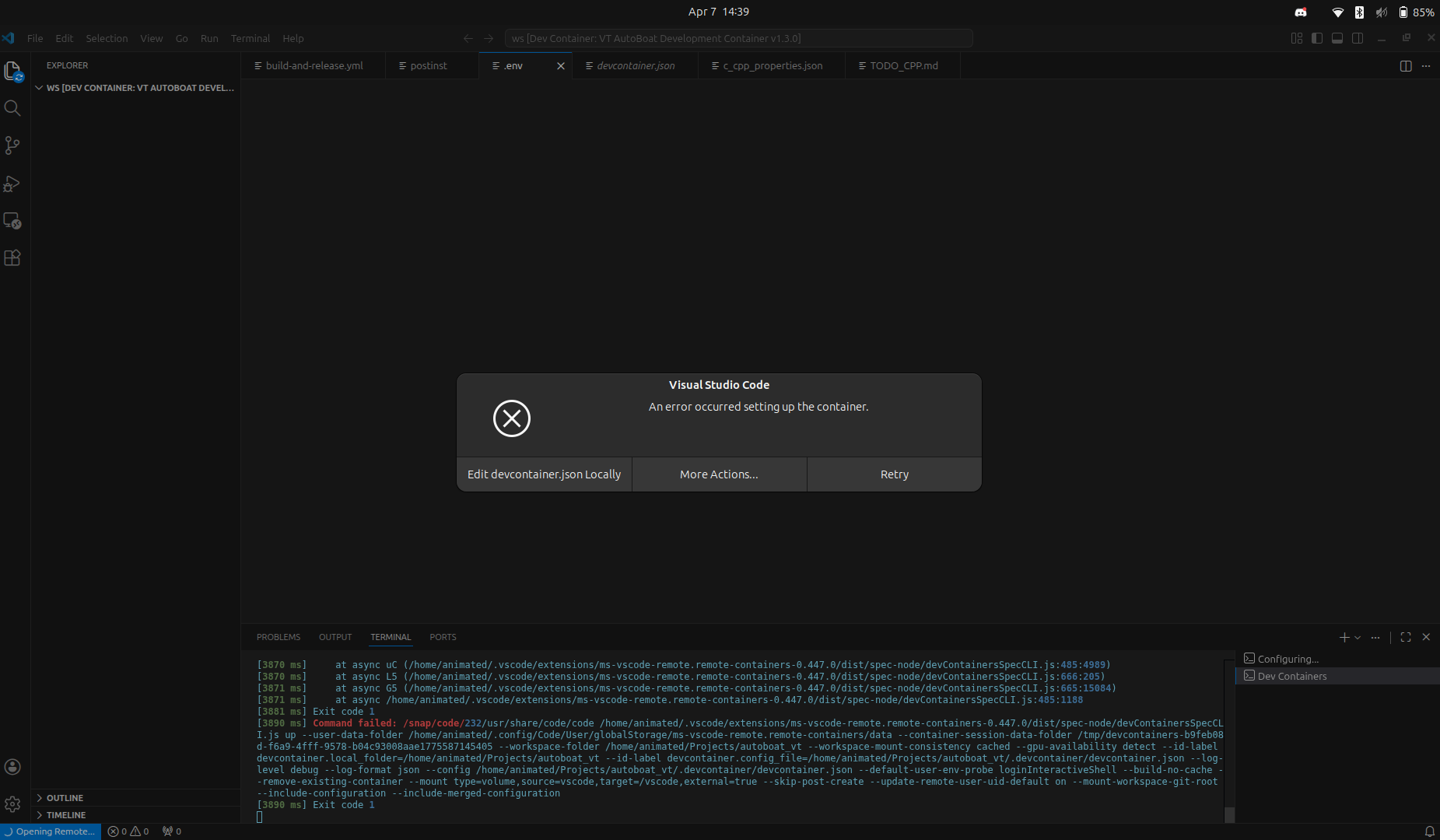
In order to access the error trace, you need to press the "edit devcontainer.json locally" button. If you wait for a little bit, a tab should pop up
to the side; this is where our error trace will be located. See below for an example of what this tab should look like.
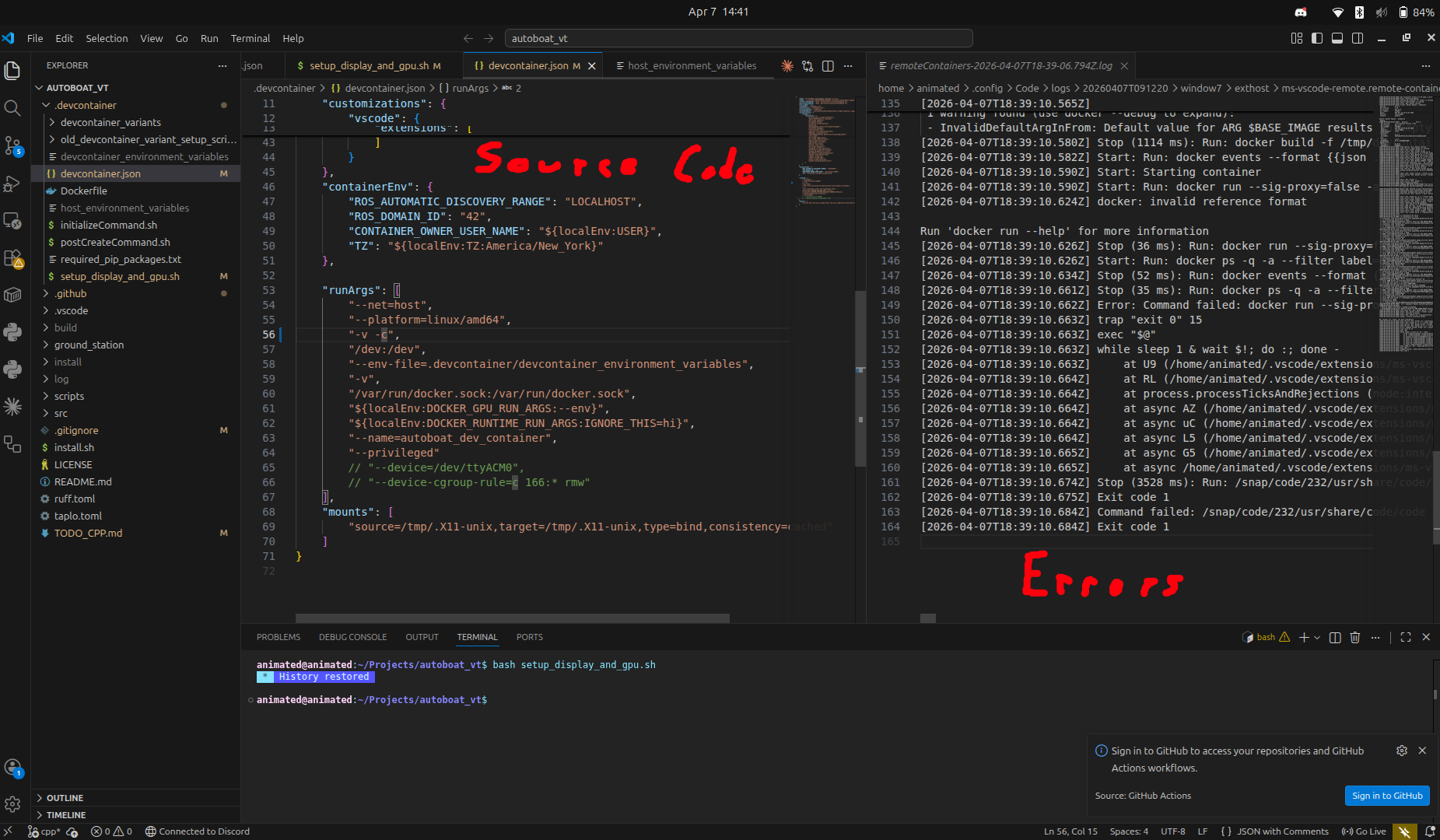
If you enlargen this tab and scroll down, you should eventually find the real error (although this might take a bit of time to find, since the real error may try to hide itself!).
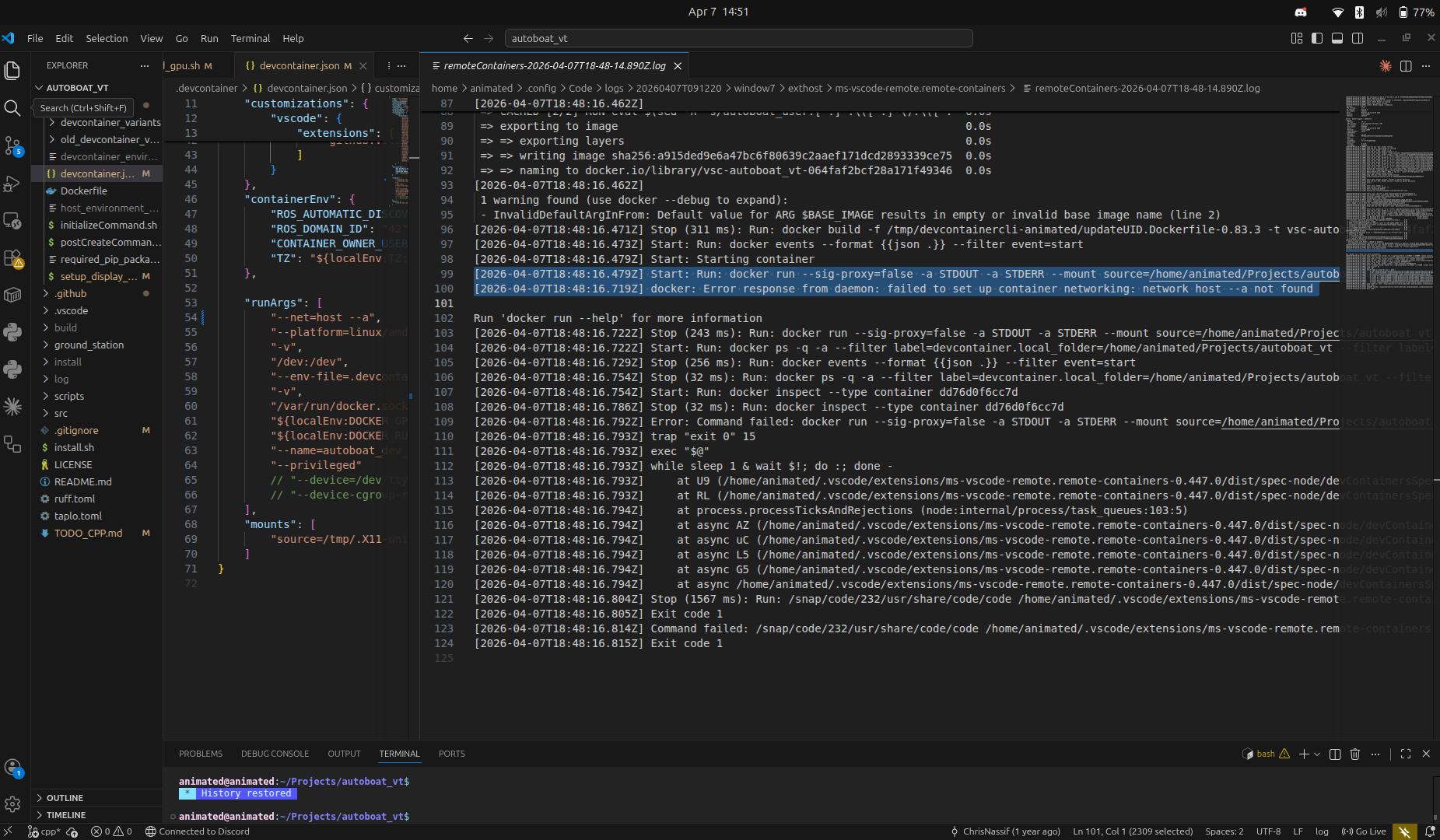
Generally the real error message is above the message that says "Run docker run --help for more information". In this case, I added an extra --a
in one of the lines where I was specifying my runArgs for the container: --net=host --a.
Common Devcontainer Errors
Missing .devcontainer/devcontainer_environment_variables File
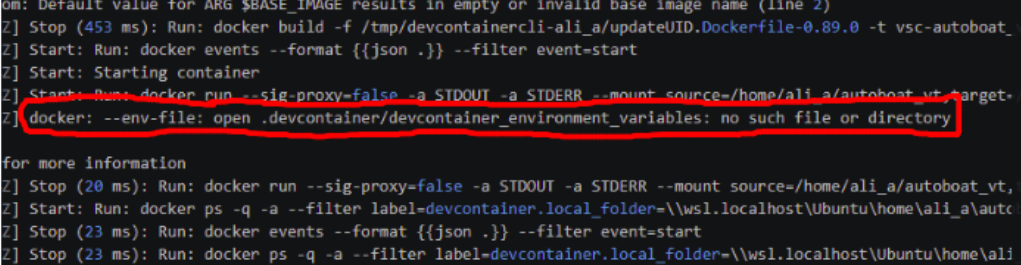
This file is meant to be automatically generated from the .devcontainer/host_setup.sh file, so if this file is missing then you likely forgot to run the following command from the getting_started documentation: bash .devcontainer/host_setup.sh && source ~/.bashrc. Solving it is fairly simple if this is the case: simply close vscode, open a WSL terminal in the autoboat_vt folder (wherever you cloned the repository), run bash .devcontainer/host_setup.sh && source ~/.bashrc, and finally run code .. Follow the rest of the steps to rebuild the devcontainer and it should work.
The only case where this solution should fail is if the host_setup script fails, in which case you should probably contact an officer.
TODO TODO TODO TODO TODO POPULATE THIS AS PEOPLE HAVE ISSUES